Show Background
You can show or hide the background by checking or unchecking the Show Background option on the main menu.
For help about how to set a background image see Current Deck tab of the Options form.
Features of the Background Form

The Ribbon contains the following sections. Depending on the size of your screen, they might not all be visible. Which sections you want to see can be determined by pressing the Customize button the far right.
The Options button launches the Options form. It also contains a version indicator which flashes when a new version of the program is available for download.
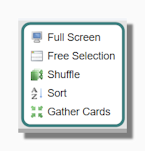
The items on the Shuffle section correspond to the first set of buttons in the Classic Menu.
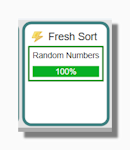
The button lets you launch a fresh randomly sorted deck where the randomization is based on mouse movements harvested during normal use of the program. Press Fresh Sort to get a freshly sorted deck. See sorting
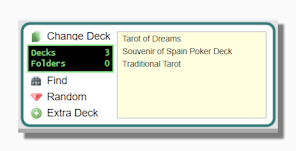
The Deck section includes options for switching to a new deck (random, recent etc.) and corresponds to some of the options on the Decks submenu of the classing menu.
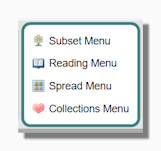
This section allows you to launch the Subs, Reading, Spread and Collection submenus directly.
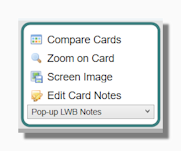
The Cards section corresponds to the Cards submenu on the classic menu.
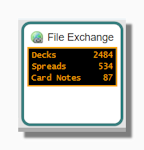
The Exchange section corresponds to the Exchange submenu on the classic menu.
This section launches this Help file and also allows you to launch the Community submenu on the classic menu.
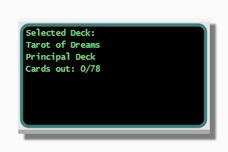
The Information section on the ribbon shows the name of the currently selected deck, a description of the deck in parenthesis, and the number of cards dealt out of the total in the deck. The possible descriptions are:
- Principal Deck This indicates that it is the deck that was originally launched when you opened the program. The principal deck always has a more complete set of menu options that any other decks you might have opened. Closing the principal deck always closes the program, whereas closing a secondary deck simply closes that deck. It is important to understand that here we are talking about launching new decks, i.e. you are working with two or more decks at the same time. For example you could run the program with a single deck form, and cycle through several different decks from your My Decks menu. In this scenario the caption bar will always say "Principal Deck". However if you open a second or third deck side by side then those decks will be secondary decks with a limited set of menu choices.
- Secondary Deck See above. This indicates a deck that you have opened side by side with the principal deck. It has a reduced set of menu options.
- Unsaved Subset An unsaved subset is formed when you deal some cards from an existing deck or subset and then select Gather to New Deck from the Gather Cards menu. It will behave just like a deck of cards in its own right but when you close the program it will not be saved. Unsaved subsets can be used in certain complex types of readings where some cards need to be separated from the main body of the deck.
- Subset A subset is a predefined subset of cards from an existing deck. For a fuller explanation of what subsets are and how they are used see My Subsets.
The patterned area in the top left of the background form can be used to launch the Main Menu. You can hide this area or make it less visible on the Program tab of the Options Form.
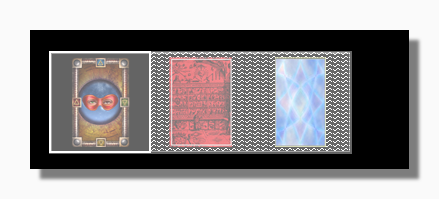
Decks can be parked in the deck parking area at the bottom left to reduce screen clutter. Click on a parked deck to relaunch it or right-click to access its menu.